
The effective management of a Google Business Profile (formerly known as Google My Business) is one of the pillars of the Local SEO and often requires the collaboration of several users. Whether you need to delegate tasks to your marketing team, work with an external agency or simply allow an employee to manage reviews, add users to Google My Business listing is an essential function within your local SEO strategy.
This tutorial will guide you step-by-step through the process of add users to Google My Business listing, Adding administrators and owners to your Google business profile and explaining each role and their specific permissions so you can strengthen your local SEO and business visibility in relevant geographic searches.
Why is it important to add users to GBP?
- Allows linking of Google accounts to manage advertising campaigns
- Facilitates delegation of profile management tasks
- Maintains operational continuity when multiple team members need access
- Allows collaboration with agencies or freelancers without sharing access credentials[
Important note: Each user will have his or her own login credentials, which improves the security and traceability of the actions performed on the profile.
Types of Roles and Permissions in GBP
Before adding users, it is essential to understand the different roles available and their access levels:
| Role | Permits and Capacities |
| Principal Owner | - Full control over the profile - Can transfer primary ownership to another user - Cannot be deleted by other users - Complete user and access management |
| Owner | - You can edit all profile information - You can manage users (add, remove, change roles) - You cannot transfer the main property - You can delete the profile from your account |
| Administrator | - Can edit business information - Can respond to reviews - Can post updates and photos - Cannot manage users and logins - Cannot delete profile |
Table 1: Comparison of roles and permissions in Google Business Profile
Which role should you assign according to the user?
- Principal Owner: It should always be the owner or manager of the business
- Owner: Agencies or freelancers who manage the profile in the long term
- Administrator: Employees, internal collaborators or temporary consultants
Do you want your business to appear where you are wanted? Let's talk!
How to Add Users to Google Business Profile (GBP)
Step-by-Step Tutorial 2026
Level: Beginner - Intermediate
Step 1: Sign in to your Google Business Profile
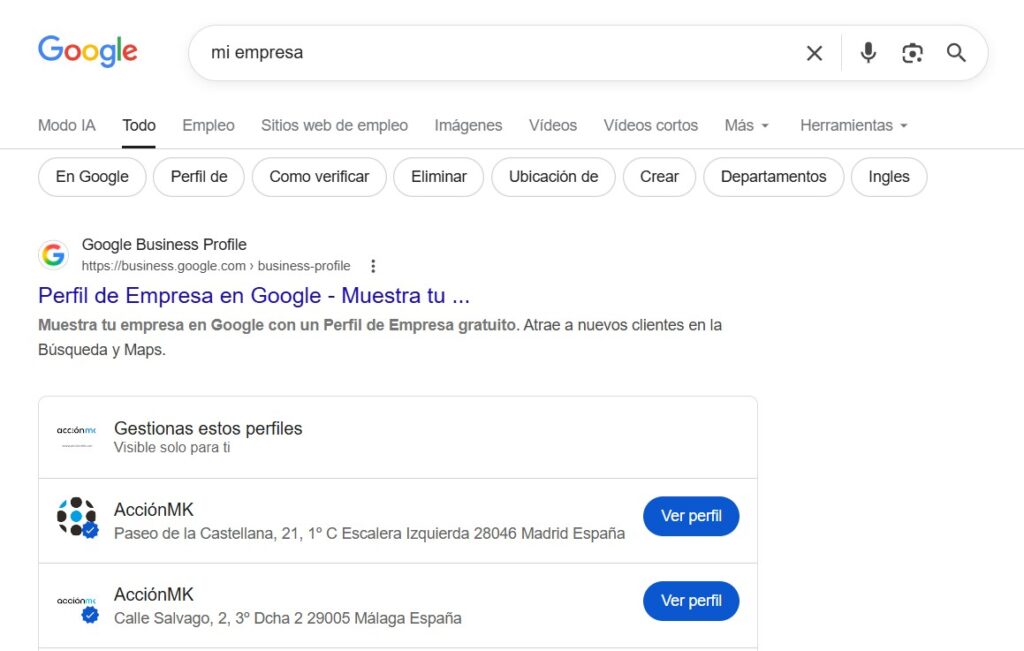
First, you need to locate your company profile on Google. There are two ways to do this:
- OpciA: Type the exact name of your business into Google Search.
- Opcis B: Type “my business” directly into Google
Important requirement: You must be signed in with the Google Account that you used to create the profile or that currently has admin permissions.
Once your profile is displayed in the results, click on the button “View profile”.
Step 2: Access your Profile Metrics Dashboard
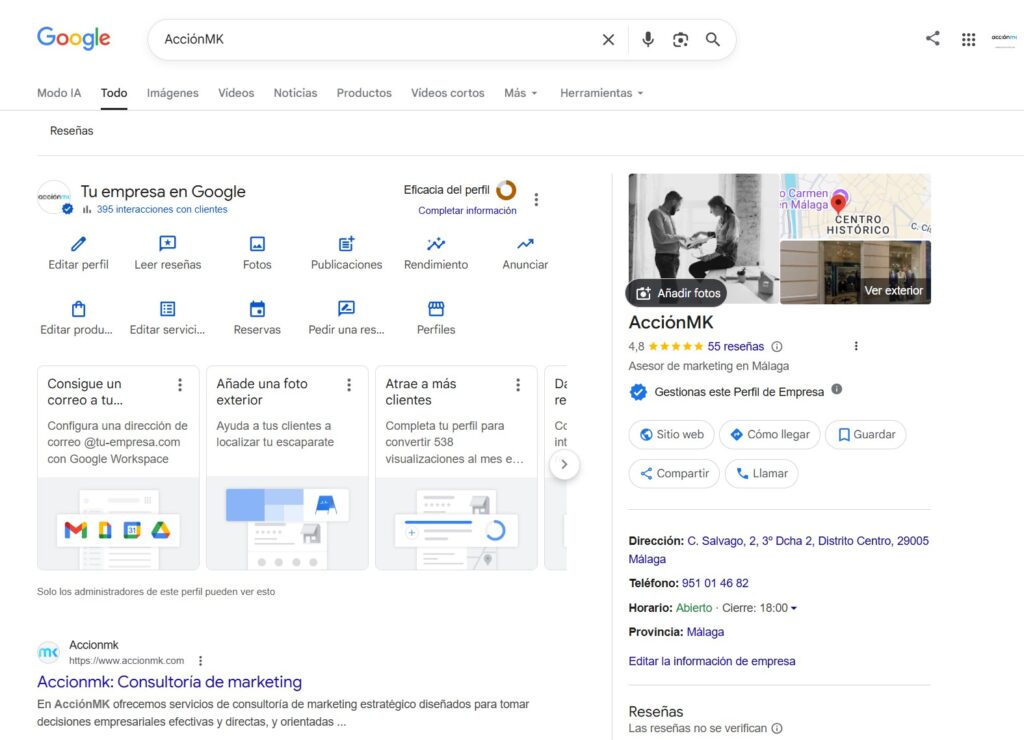
By clicking on “View profile”, you will open the management panel of your Company Profile. Here you will be able to view:
- Statistics and performance metrics
- Options for editing business information
- Tools for adding photos and publications
- Customer reviews and ratings
Note: The current Google Business Profile interface has integrated all metrics directly into this screen, unlike previous versions where you had to navigate to a separate page[6].
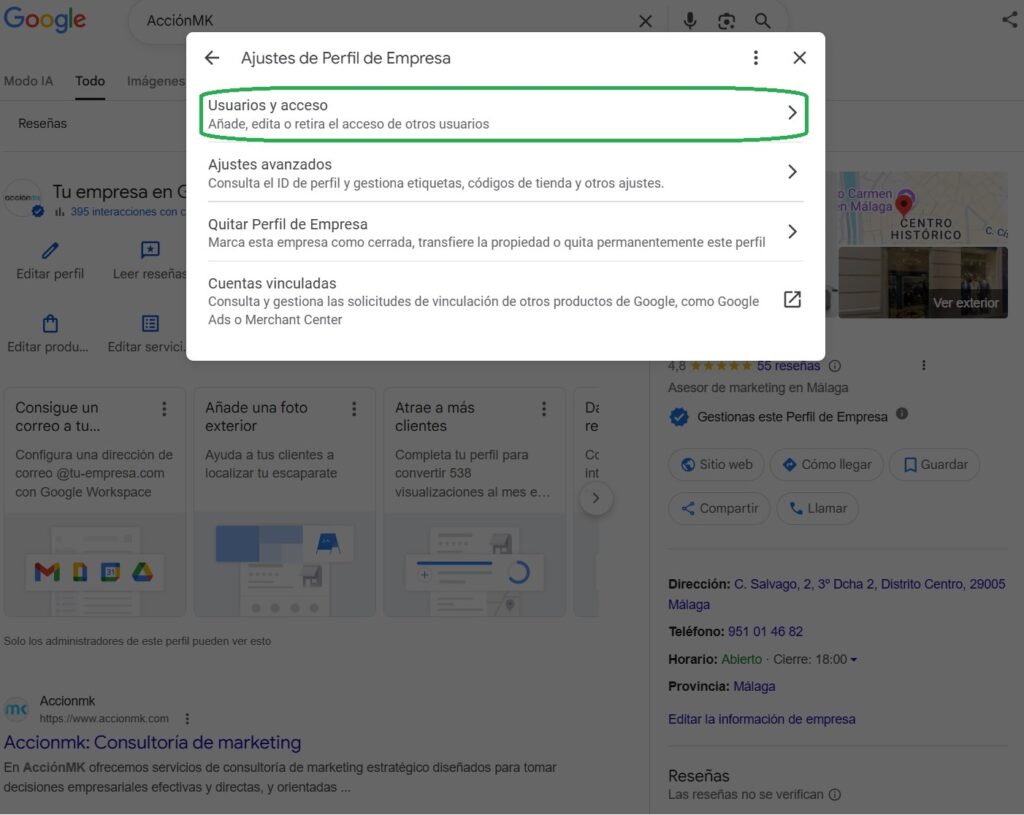
Step 3: Access Company Profile Settings
To add users, you need to access the settings. Follow these steps:
- Locate the three vertical points in the top right-hand corner of the panel
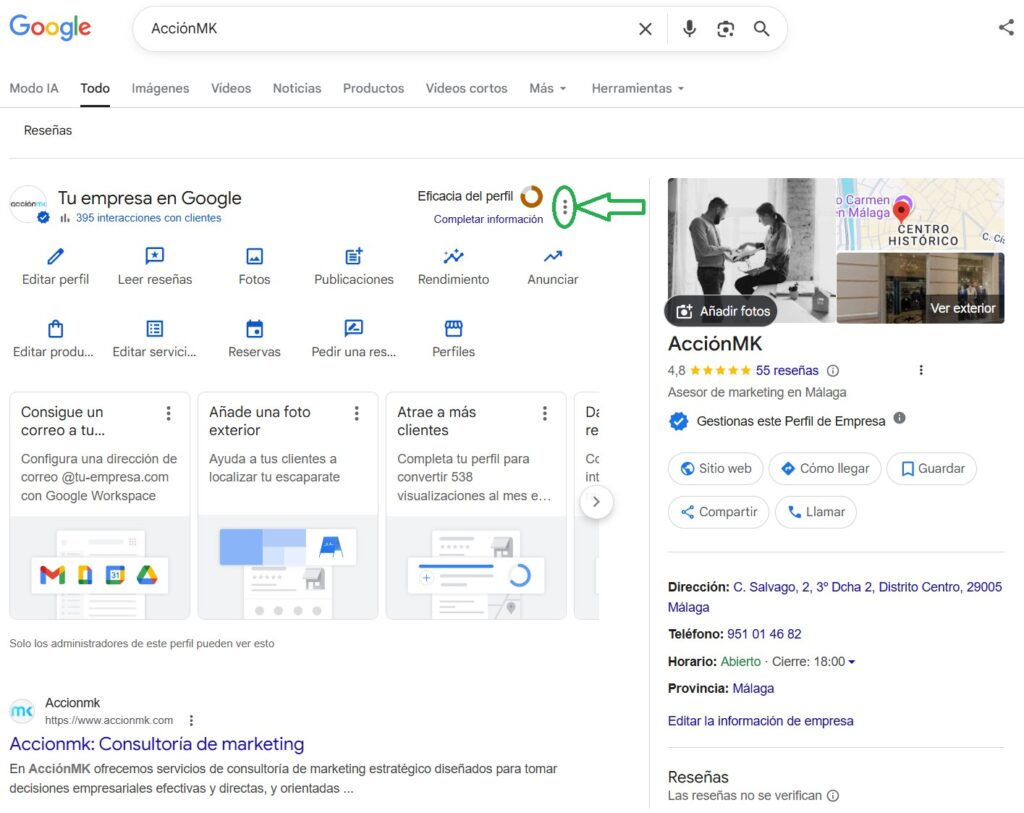
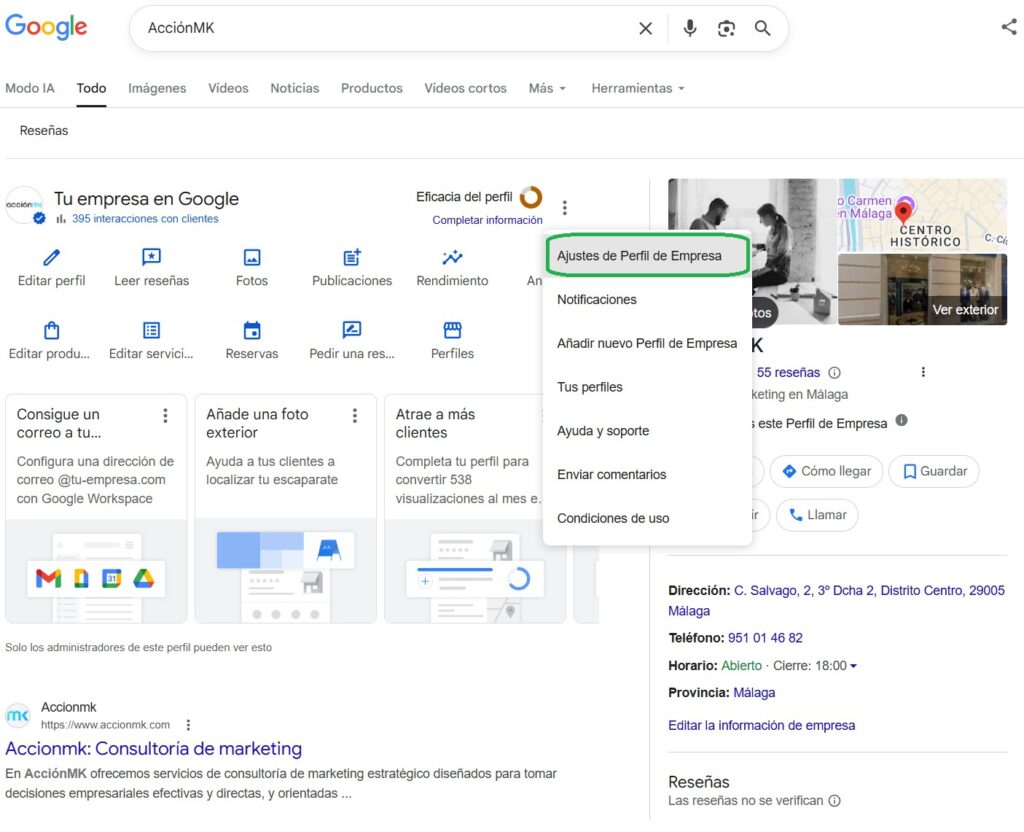
- Click on that menu of options
- Select “Company Profile Settings”.” (or “Company Profile Settings”)
Can't your customers find you on Google? We can, contact us.
Step 4: Navigate to the “People and Access” section.”
Once inside the profile settings, you will see several administration options. You must:
- Search for the section called “Users and access”
- Click to access this section
On this screen you will see the full list of people who currently have access to your Company Profile, along with their respective roles.
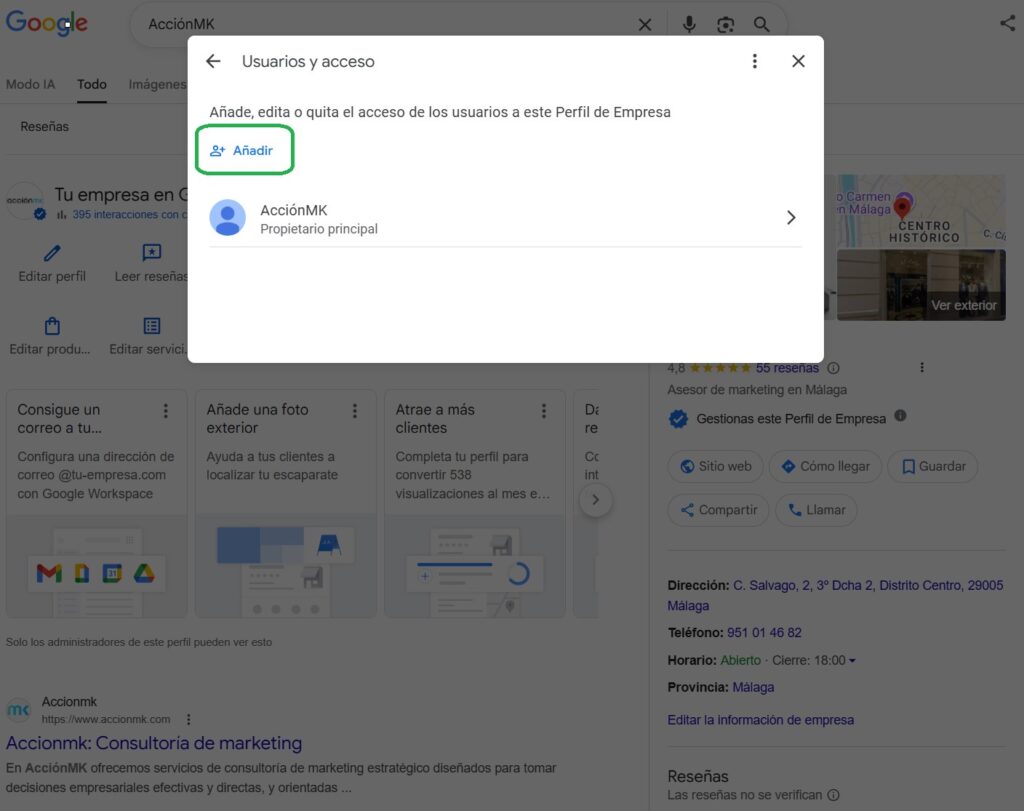
Step 5: Add a New User
Now it is time to invite the new user:
- In the top left corner, click on the button “Aadd”.” o “Aadd new”.”
- A dialogue box will open to enter the new user's details.
Ready to attract more local customers? Write to us and we'll do it.
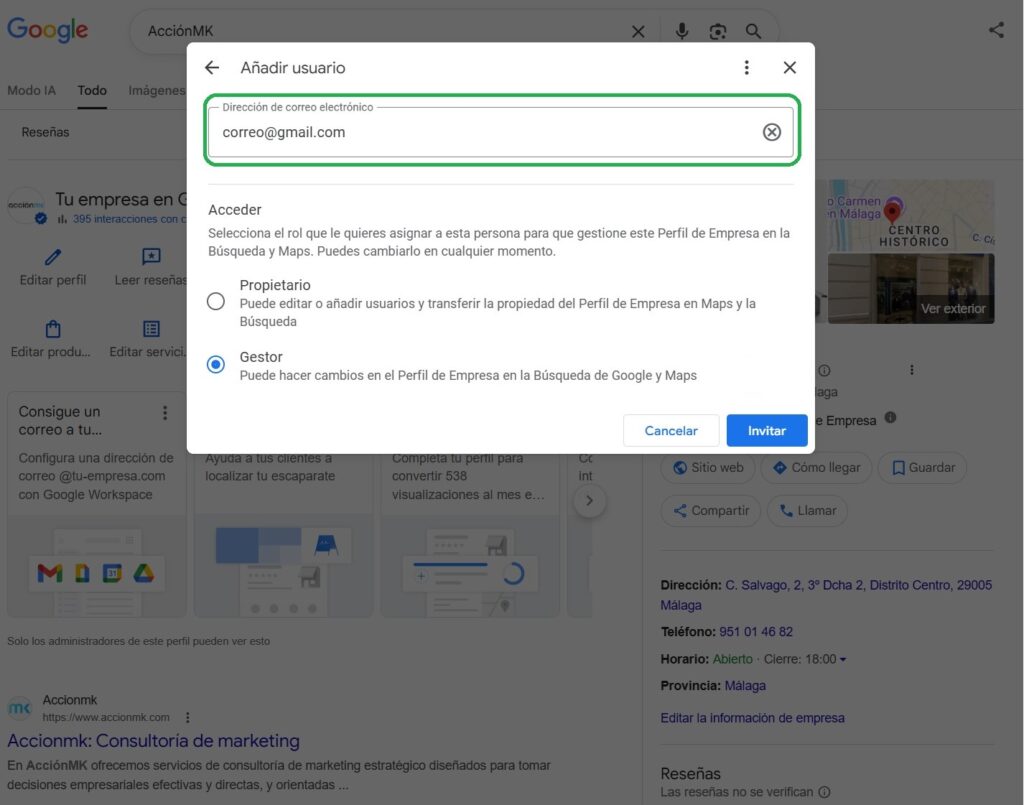
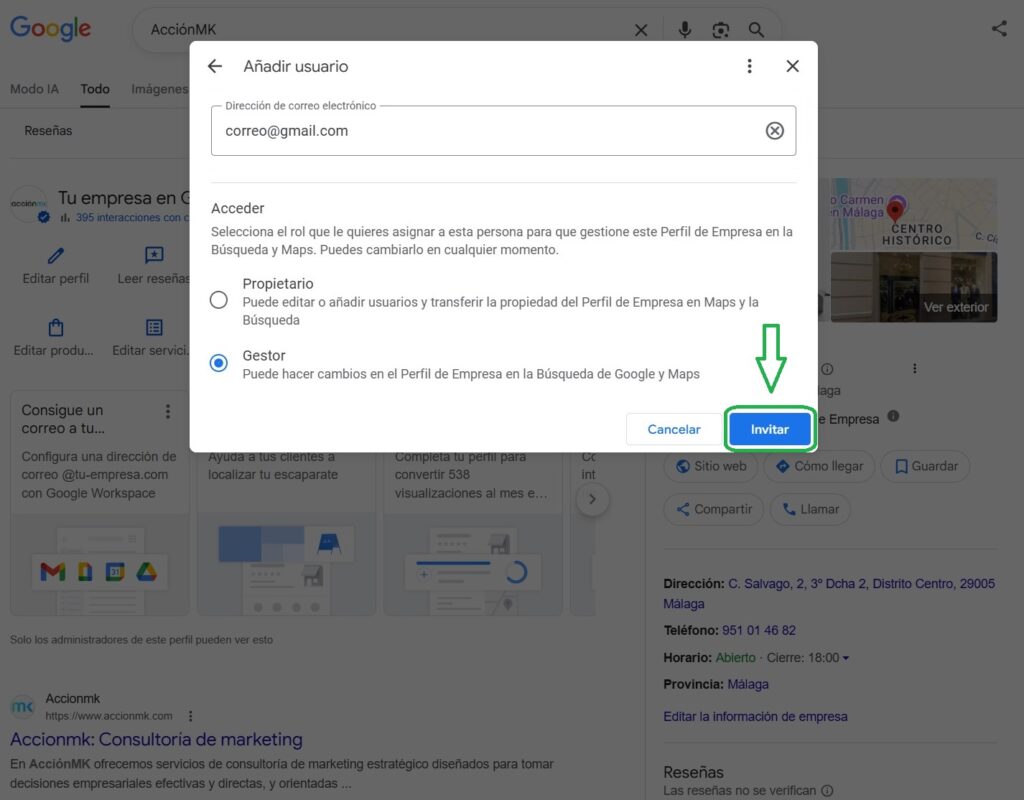
Step 6: Enter Email and Select Role
In the form that appears, you will have to fill in two important fields:
6.1. E-mail address
Enter the Gmail email address of the person you wish to grant access to.
Important: It must be a valid Google account (ending in @gmail.com or other Google associated account).
6.2. Selection of the Role
Under the “Access” field, select between two options:
- Owner: For persons with full management responsibility
- Administrator: For staff with limited operational functions
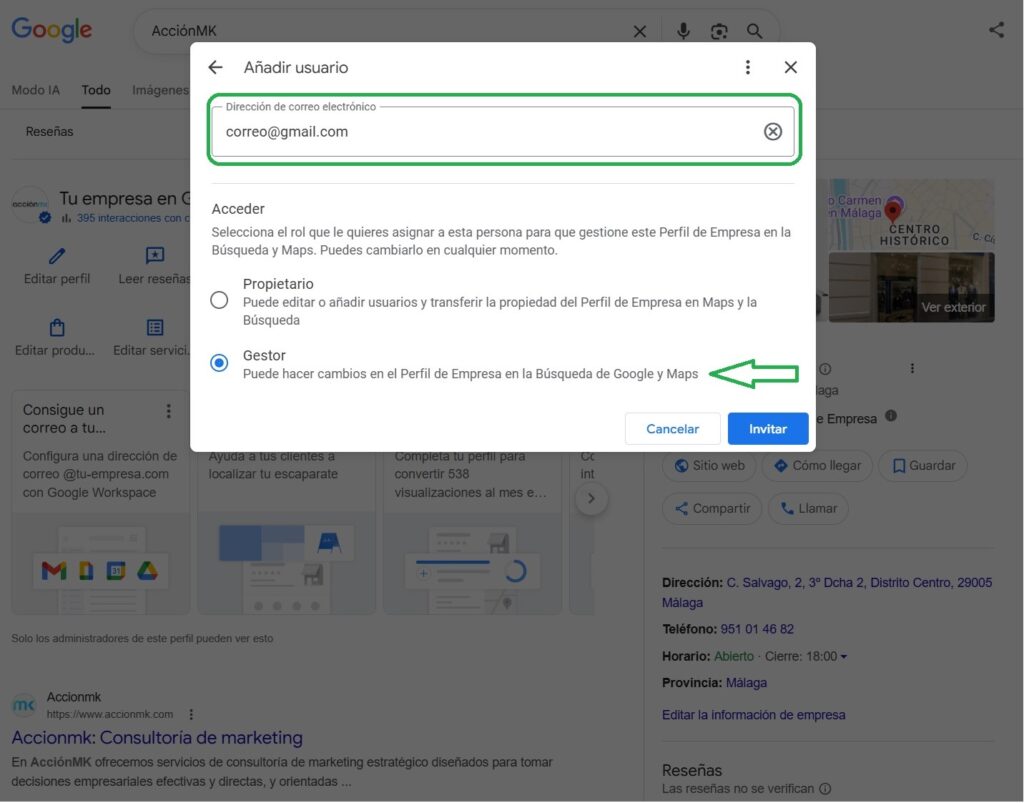
Recommendations security measures: Always grant the minimum level of access necessary. It is easier to extend permissions later than to regain control if you assign too much access initially[4].
Step 7: Send the Invitation
Once the fields have been completed:
- Click on the button “Invite”
- The system will automatically send an e-mail to the address provided.
Step 8: The User Accepts the Invitation
The process is not complete until the invited user accepts:
- The user will receive an email from Google with the subject line “Invitation to manage [Business Name]”.”
- You must open the mail and click on the accept button.
- Once accepted, their name will appear in the “People and access” list of your profile.
Note: The invitation may take a few minutes to arrive. If it does not appear, please check your spam or junk mail folder.
Stop losing customers in your city, talk to us.
Best Practices for User Management
Security and Control
- Maintenancealways the role of Principal Owner: If you are the business owner, never transfer this role.
- Review periThe users with access: Remove users who no longer need access
- Documenta quiIt also has access and why.é: Keep an internal register of authorised users
- Use Administrator roles for temporary collaborators: Limit risks by assigning restricted permissions
Working with Agencies and Freelancers
If you work with external professionals:
- Request your professional (non-personal) email address
- Assign Owner role only if it is a long-term relationship.
- Establish clear agreements on transfer of access at the end of the contract.
- Never share the credentials of the main account
What to Do Before Removing a User
Before taking access away from someone:
- Verify that you are not the only user with certain critical permissions.
- Make sure you have documentation of the changes you have made.
- Communicate in advance of a change of access
- Transfer any work in progress to another user
Your Google listing doesn't sell? We will optimise it for you, contact us.
Modifying or Deleting Existing Users
Change the Role of a User
If you need to modify the permissions of an existing user:
- Go to your Company Profile
- Select More → Company Profile Settings → People and Access.
- Click on the user whose access you want to change
- Next to “Access”, select Edit
- Select the new role and click Save
Important: Only owners can change the roles of other users.
Delete a User
To remove access completely:
- Go to People and access
- Locate the user you wish to delete
- Click on the three dots icon next to his name
- Select “Delete” or “Remove access”.”
- Confirm the action
Note: If you remove the last Owner, the Principal Owner becomes the only one with full control.
Troubleshooting Common Problems
“I can't find the option to add users”.”
- Cause: You do not have Owner permissions
- Solutions Contact the Main Owner to grant you the necessary permissions or add the user himself.
“The user does not receive the invitation email”.”
- Possible solutions:
- Check that the email is spelled correctly
- Ask the user to check the spam folder
- Wait 15-30 minutes (sometimes there is a delay in the system).
- Cancel the invitation and send a new one
“I can't access the Profile Settings”.”
- Cause: You are signed in with a different Google Account
- Solutions Log out and log back in with the correct account that has permissions to the profile.
“The profile belongs to someone else and I need to get it back”.”
- Solutions Google offers an ownership claim process. You will need to verify that you are the rightful owner of the business through official documentation[9].
Do you want to master local SEO in your area? We can help you, talk to us.
Frequently Asked Questions (FAQ)
¿CuHow many users can I add to my Google Business profile?
There is no official limit set by Google, but it is recommended to keep only those users who are strictly necessary for security reasons.
Can I add users without them being owners?
Yes, the Administrator role allows operational management without granting control over critical users and settings.
WhatWhat happens if the person who added the personé no longer works with me?
You should remove their access immediately from the People and Access section to maintain the security of the profile.
Can I transfer the main property to another person?
Yes, but only the current Principal Owner can perform this action. It is irreversible and should be done with caution.
Are users able to see the informationPerformance metrics?
Both Owners and Administrators can view profile statistics.
Adding users to your Google Business Profile is a simple but crucial process for the efficient management of your online presence. By following this step-by-step tutorial, you will be able to:
- Safely delegate management tasks
- Collaborating with external teams without compromising security
- Maintain full control over your business profile
- Optimising the management of reviews, publications and updates
Always remember:
- Assigns the minimum access level required
- Regularly review the list of users with access
- Keep the Principal Owner role under the control of the business owner.
- Document internally who has access and for what purpose.
With proper user management, your Google Business Profile will become a powerful collaborative tool to improve your local SEO and connect with more customers.
References
[1] Google (2026). Manage the owners and administrators of a Company Profile. Google Business Profile Help. https://support.google.com/business/answer/3403100?hl=es-419
[2] Google (2026). How to add owners and administrators. Google Business Profile Help. https://support.google.com/business/answer/3403100?hl=es-419
[3] Google (2026). Changing the access roles of owners and administrators. Google Business Profile Help. https://support.google.com/business/answer/3403100?hl=es
Still not taking advantage of Google Business Profile? Write to us and we will activate it.